FeaturesTeam and roles
Counter staffsee the counter.
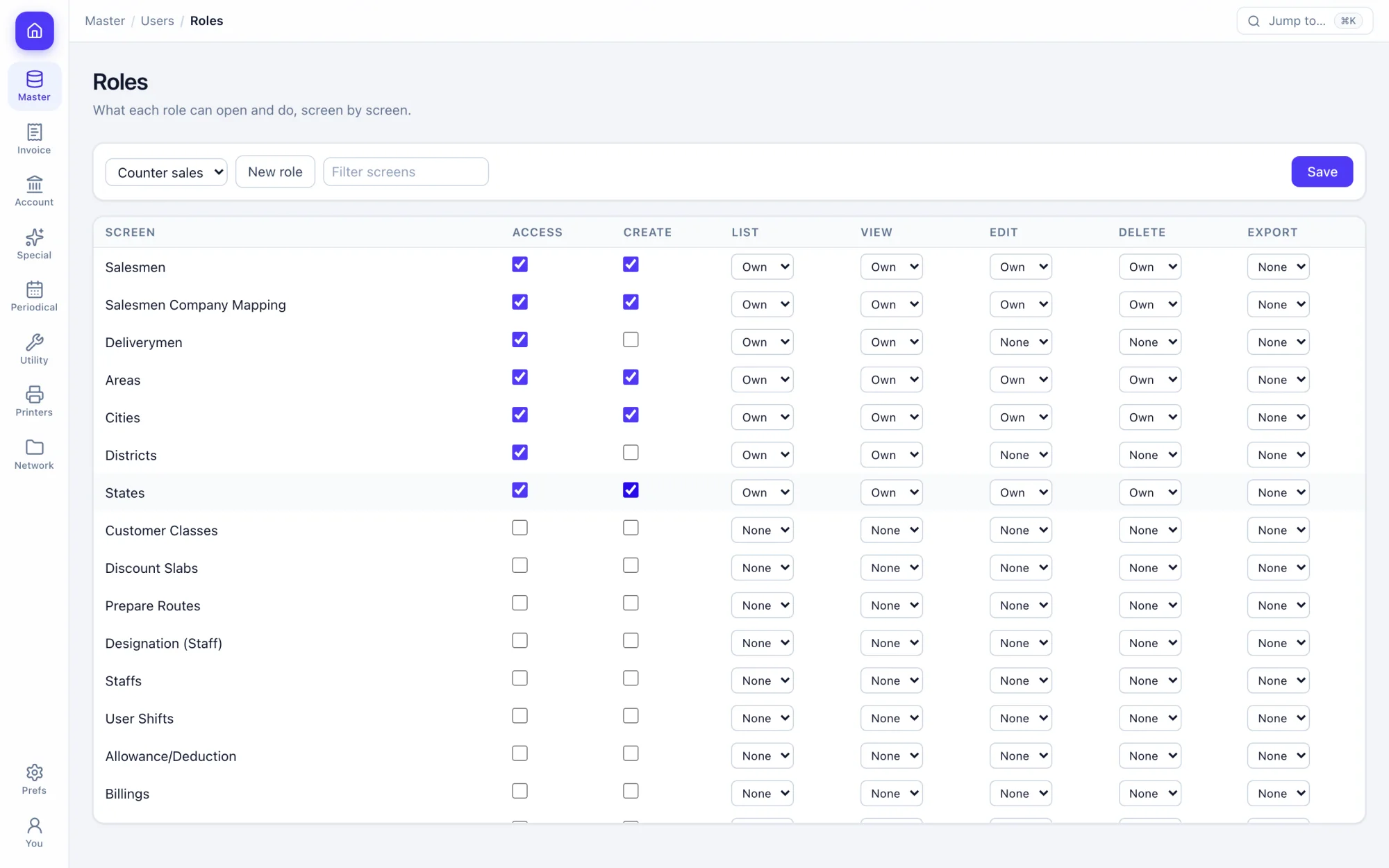
Roles decide who opens, creates, edits, deletes or exports each screen. Every refusal and every change lands in the activity log.
How the work goes.
Step 1
Create roles
Set open, create, edit, delete and export for each screen.
Step 2
Add your people
Each user gets a role and a branch.
Step 3
Work is checked
Every page and request is checked against the role, not only hidden from the menu.
Step 4
Review the log
See who did what and when, and what was refused.
What you get.
Per-screen rights
Open, create, edit, delete and export, per role and per screen.
Action rules
Deny a single action, such as deleting a bill, for a role.
Users
A deleted user is signed out at once.
Activity log
Who did what, when, and what was refused.
Branches
Switch branch and financial year from the header.
Preferences
Set how billing, printing and numbering behave for your firm.
Backup
The administrator can download a full copy of the firm at any time.
Year change
Move into a new financial year with balances carried forward.
Keys you will use.
All shortcuts- PreferencesAlt,
- Homegh
- Search the menuCtrlK
Screens in this area.
See all screens- Users
- Roles
- Device Roles
- Branches
- Change Company/Branch
- User Activity
- Preferences
- Backup
- Year Change
- Staffs
Try it on your own books.
Fourteen days free with every feature. Pick a firm code and you are billing in a minute.